


This article explains the order in which the five DP-INS indicator displays all five LEDs as green.
The DP-INS indicator sequence is shown below.

The Lodestar icon will continually pulse on/off in orange until the transponders are “fixed”. It will then change to solid green.

The Lodestar has been accepted into the system but has not settled.

The Lodestar has settled, no transponder being tracked.

A transponder is tracked as Mobile.

A transponder tracked as Mobile will now give four green LEDs.
Note: Sonardyne recommend three or four transponders in an array.

Changing the transponder from Mobile to Fixed (after calibrating the transponder) will now display all five indictors green).

The Lodestar icon on the bottom left will now display solid green.

DP telegram PSONDP is now active and can be Enabled.

After the transponders are changed from Calibrating to Fixed, the inertial navigation positioning will automatically begin.
The INS position for the vessel is displayed in blue and the acoustic position in green.
The INS indicator in the bottom left window will now also display green.

Note: the GPS input has been automatically taken off-line after the transponder calibration, which can be seen below in red. The GPS icon is now displayed blue, confirming GPS is available but not being used in tracking.
Also, in the system action comments confirmation GPS has been taken offline.

Contact [email protected] for more information.
This article describes how to calculate the heading accuracy of a SPRINT 300/500/700
Equipment required
- SPRINT instrument
- Cable to connect to the CP port of the SPRINT
- GPS aiding
Procedure
1. Refer to the product manual to gain a step-by-step guide to connect to your SPRINT.
2. Configure an output telegram from the unit such as a SON2 to retrieve heading, pitch and roll (you will need to decide on your own method for collecting and presenting the recorded AHRS data).
3. Ensure you are proving the SPRINT with an aiding source such as GPS to initialise the INS algorithm.
4. Place the SPRINT on a calibrated base line with a known heading.
5. Record the heading data for a minimum of 2 hours.
6. Review the datasheet of your product to establish the sensor accuracy.

Using a Gen 3 SPRINT 500 for example, the Datasheet shows:
- Heading = 0.04° Seacant latitude
- Pitch and Roll = 0.01°
Calculating the Standard Deviation (SD)
- 0.04° * (seacant (latitude**)) = heading SD
- ** For Aberdeen the latitude equates to 57.19°
Example equation
- 0.04*(1/cos (57.19)) = 0.07° max SD for heading
7. Present your recorded data so that you can calculate the standard deviation of the heading over the 2 hour period.
Viewing the results of your test, verify the SPRINT matches the calculated parameters. For the example of a SPRINT 500 in Aberdeen, this could be:
| Test | Maximum Standard Deviation |
| 2 hour heading verification | <= 0.07 (if using ABZ latitude) |
| 2 hour roll verification | <=0.01 |
| 2 hour pitch verification | <=0.01 |
Support
If the SPRINT has a greater standard deviation, then calculated, please contact [email protected] and provide the following information:
- Lodestar serial number
- Method of testing
- Results from test
- Any recorded .bin log files
The latitude for a Gyro Compatt 6/6+ can be set using any one of the following three methods:
- Serially
- Using an iWand
- Acoustically
Serially
To Set Gyro Compatt 6 latitude serially:
1. Connect to the Lodestar section of the Gyro Compatt by using the CP port and a 24 V dc power supply.

2. Open the Lodestar PC utility.

3. Click Connect.

4. In connection to Lodestar window ensure all options are correct then click, OK. Alternatively, use “auto detect if the options are unknown.
5. Select the Gyro Compass tab and adjust the Decimal Degree Latitude setting to the desired value. If the reading is changed, select Apply.

6. To confirm the latitude is set, the manual command GC LAT can be sent to verify the setting was stored correctly, using the Terminal tab.
iWand
An iWand can be used to set the latitude from its internal GPS. This is complete using the Quick Check function.
To Set Gyro Compatt 6 latitude using an iWand:
1. Ensure the Gyro is turned on using the ROV test box. Press and hold the ROV switch for 2 seconds to turn on the Lodestar.
2. A red POWER LED will illuminate to confirm the Lodestar power is provided.

3. Wait ~50 seconds for the Lodestar to boot up and the green IN LED to start flashing.
4. Perform a Quick Check on the Gyro Compatt 6.

5. Select Latitude Config.

6. If GPS is enabled, the iWand will wait for a valid GPS fix. If the GPS is not enabled the iWand will display GPS not enabled. This can be configured be navigating iWand Setup > Power Saving > GPS Enable.

7. After a GPS fix is achieved, click Start to acoustically configure the Gyro Compatt 6 latitude.

8. On completion, the screen will display the latitude xx.xxxx to confirm the Lodestar has been configured.

Acoustically
To Set Gyro Compatt 6 latitude acoustically:
1. Enter the following commands whilst communicating with ROVNav or 6G transceiver connected through 6G Terminal Lite software.
2. Replace xxx with Lodestar Gyro Compatt 6 address.
3. Ensure Capitalise is not selected as the following commands are case sensitive.
4. Select the Manual Commands tab of 6G terminal lite and send the following commands one at a time:
| 6G Manual Commands | Function |
| MS:P0 | Set transceiver port |
| MS:xxxx;W1,DD512,MD512,P1,SM0,B4 | Set Compatt port |
| MDFT:xxxx;W1,RS3|\oSON\r\n | Enter command mode |
| MDFT:xxxx;W1,RS3|gc lat\r\n | Read Latitude |
| MDFT:xxxx;W1,RS3|GC LAT XX.xx\r\n | Set latitude (replacing XX.xx with latitude in degrees) |
| MDFT:xxxx;W1,RS3|gc lat\r\n | Read latitude |
| MDFT:xxxx;W1,RS3|SYS SAVE FLASH\r\n | Save settings |
| MDFT:xxxx;W1,RS3|GC RST\r\n | Re-set Gyro compass |
| MDFT:xxxx;W1,RS3|\e\r\n | Exit command mode |
| MS:xxxx;W1;TS3,DD1024,MD4096,P2,SM1,B512 | Set Compatt port |
Contact [email protected] for more information.
This article provides an overview for MF beacon positioning.
The Type 8325 SST6 Transponder has been designed for seismic Transition Zone (TZ) and Ocean Bottom Cable (OBC) applications, where large numbers of small, long-life Transponders are required to position the hydrophones or geophones along seismic lines.

The transponder has been specifically designed to meet the tough environment associated with deployment and recovery of shallow water seismic cables, and operates in the 18kHz to 36kHz Medium Frequency (MF) band.
They can be programmed and tested using Near-Field Communication, from either an Android device, or a USB-connected NFC Reader.


Models designed for water depths up to 1,000 m and 3,000 m are available, and utilise Sonardyne’s latest 6G acoustic technology.
Beacons can be interrogated in one of two ways.
They can be interrogated from a single Remote Transducer (typically mounted to an over-the-side pole), through a Type 8263 MF Transceiver.
Simple range information is then collected from each beacon.

Alternatively, a USBL solution can be achieved by utilising Sonardyne’s Mini-Ranger 2 system, with an HPT 3000 MF Transceiver either fitted to an over-the-side, or through-hull-mounted pole.

Either type of data collection can be controlled by Sonardyne’s HydroPos survey control package.

Alternatively, 3rd party software can be used.
The range-only solution requires the vessel to sail past the beacon on both sides of the seismic line (in opposite directions), typically requiring a reasonably large number of position-fixes (about 40 minimum ideally) in each direction.
On the other hand, the USBL solution only requires a few good position fixes, the best quality ones typically when the vessel is directly above the beacon.
A common mistake by 3rd party programmers is to make the software Range Gate too large, so that too many beacons are trying to be tracked at once. As mentioned above, with USBL, you only need a handful of good replies to fix their position. If you have too many, then the long ranges to distant beacons may limit the number of good replies from nearby ones.
Contact [email protected] for more information.
To connect to the Lodestar within a Gyro USBL via an NSH follow the procedure below.
Equipment required:
- Gyro USBL 5000/7000
- Latest version of Lodestar PC utility
- Navigation Sensor Hub (NSH)
Procedure
1. Exit all other programs on the Marine PC.
2. The NSH should be switched on and confirm the Lodestar slot and port connections as this information will be used in the connection step later in this procedure.
3. Run the Lodestar PC Utility program (a shortcut should be displayed on the desktop or use the Start menu).
4. Click Connect (the PC Port information may be different from the screenshot for your system, and this is automatically populated by the program and should not be changed).

5. After the NSH IP Address is displayed, click OK.

6. Note the Connection to Lodestar should be set to the IP tab. The IP Address, Socket ID should be automatically populated. Ensure the Connect To NSH and 48 V On fields are selected. The NSH Port should correspond to the NSH information from step 2 above.
7. The Baud Rate, Data Bits, Parity and Stop Bits should be left at default. Multiplexed should not be selected. Now click Auto Detect.

8. The program will now search for the Lodestar connection and when detected will display the following windows. Click OK.

9. On the following window, click OK.

10. If the Lodestar connection is successful, the following information will be displayed.

If the software fails to auto detect, select the correct NSH port, 48 V on and the multiplex box selected and then click Connect.
If you still have issues connecting to a Gyro USBL, contact [email protected] for assistance.
Please include information such as:
- Vessel name
- GyroUSBL serial number
- Screenshots of any troubleshooting from the PC utility software
Contact [email protected] for more information.
6G Terminal Lite Test
This is a separate test program that will be automatically stored on the Marksman/Ranger 2 computer, but we would advise this program is stored on a separate laptop to test the beacons. Prior to starting the 6G Terminal Lite test:
- Confirm the laptop has a serial port. The C6/C6+ test cable has a RS232 9 pin connector. If using a USB to RS232 converter, we have reports of communication errors so you may need to the operation with the 6G Terminal Lite software.
- Make sure the C6/C6+ is turned on.
- Connect the RS232 CPU connector to the laptop serial port.
The 6G Terminal Lite program communicates with the C6/C6+ and displays the hardware/firmware information. If required, you can send an email to [email protected] to verify the current firmware release for the C6/C6+. The address and operational setting can be changed to suit the current operations and test the hardware, release (if fitted) and internal sensors. To complete the “Range Test” you will require another C6/C6+ or other Sonardyne 6G beacon. Generate a “Test Report” which will display a pass (green tick) or failure (red cross) to save for your records.
iWand Test
The iWand model 8315 is a handheld rugged battery powered unit that can be used to acoustically interrogate, test and program the C6/C6+ beacon and will give you added confidence as you are using the C6/C6+ transducer to communicate. The iWand 6G Configuration software stored on a laptop or PC can be used to easily synchronise via RS485 or RS232 to store, change beacon settings and produce a test report for the C6/C6+. The test report will display a pass (green tick) or failure (red cross) to save for your records.
This procedure describes how to activate the alarm available in Marksman & Ranger 2 software, to alert the crew if a Deployment Machine pole is accidentally left deployed and the vessel speed exceeds a certain speed.
Our Deployment Machine, when correctly braced, is capable of handling prolonged speeds of 7 knots.
However, if the pole is accidentally left deployed, and the vessel sails to its next destination at a speed greater than this, then potentially‑catastrophic damage could result.

At best the pole could deform and bend, resulting in a replacement Deployment Machine and transceiver.
At worst, the through-hull tube on which the gate valve sits could fail, possibly resulting in (at best) localised flooding.

Our most-recent Deployment Machine system, together with our latest Marksman and Ranger 2 software, allows not only the machine to be operated from software (as well as from the normal push‑buttons on each control console), but also to warn the operator if the deployment pole is not fully recovered when the vessel exceeds 7 knots.

The following alarm message is displayed: “Deployment 1 is in the down position and vessel speed has exceeded the safety threshold of 7 knots”.
(“Deployment 1” is the default (changeable) name of the Deployment Machine.)
As well as alerting the operator both visually and audibly from Marksman/Ranger 2 software, a telegram can also be configured to alert 3rd party equipment, such as the DP system, either via a serial (RS232/RS485) or UDP link.

Contact [email protected] for more information.
Follow the procedure below to import waypoints into Ranger 2 software.
Ensure the waypoint options are enabled in Ranger 2.
Select Tools > Options > Menu.

Select Tools > Waypoints and confirm the Import and Remove All check boxes are selected.

Generate a file (for example, in Excel) using the waypoint information.
The column format is:
- Name
- WAYPOINT
- Easting
- Northings
- Depth (all can be “0”)
A sample format is shown in the table below:
| WP 1 | WAYPOINT | 650779 | 5688851 | 0 |
| WP 2 | WAYPOINT | 650811.5 | 5688818 | 0 |
| WP 3 | WAYPOINT | 650779 | 5688786 | 0 |
| WP 4 | WAYPOINT | 650746.5 | 5688818 | 0 |
Save the Excel file in .csv format.
Rename the .csv file to .nav (example: waypointtest.csv > waypointtest.nav).
Select Tools > Waypoint > Import… to import the waypoint.

Navigate to the folder the waypoint .nav file is saved in and then select Open.

The waypoint should now be imported to Ranger 2 and displayed. If the system is set to a different reference display format (reference frame) from WSG84, the Ranger 2 system will automatically convert it (example Lat/Long below).

Contact [email protected] for more information.
This article provides an overview for HF beacon positioning.
The Type 7815 OBC Transponder has been designed for seismic Transition Zone (TZ) and Ocean Bottom Cable (OBC) applications, where large numbers of small, long-life Transponders are required to position the hydrophones or geophones along seismic lines.
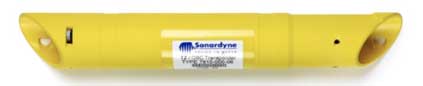
The transponder has been specifically designed to meet the tough environment associated with deployment and recovery of shallow water seismic cables, and operates in the 25 kHz to 50 kHz High Frequency (HF) band.
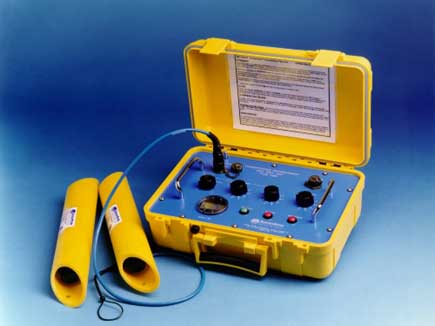
They can be programmed and tested using a Type 7967 Test/Programming Box to any one of 401 interrogation Addresses, combined with any one of 9 Reply Channels – to provide 3609 unique identities.
Water depth is limited to 500m but typical slant ranges of 750 m – 1500 m are achievable (depending on vessel noise and seabed topography).
Beacons can be interrogated in one of two ways:
They can be interrogated from a single Remote Transducer (typically mounted to an over-the-side pole), through a Type 8263 HF Transceiver.
Simple range information is then collected from each beacon.
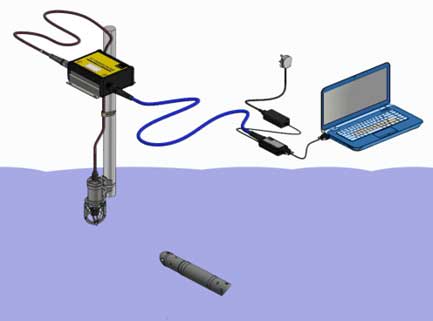
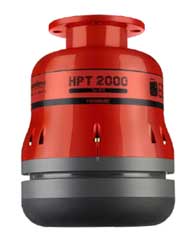
Alternatively, a USBL solution can be achieved by utilising Sonardyne’s Mini-Ranger 2 system, with an HPT 2000 MF Transceiver either fitted to an over-the-side, or through-hull-mounted pole.
Either type of data collection can be controlled by Sonardyne’s HydroPos survey control package.
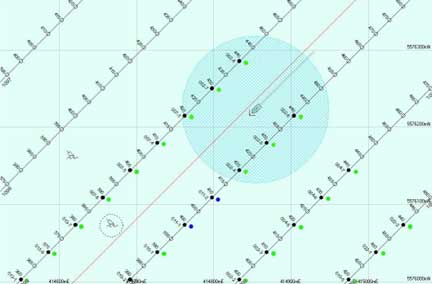
Alternatively, 3rd party software can be used.
The range-only solution requires the vessel to sail past the beacon on both sides of the seismic line (in opposite directions), typically requiring a reasonably large number of position-fixes (about 40 minimum ideally) in each direction.
On the other hand, the USBL solution only requires a few good position fixes, the best quality ones typically when the vessel is directly above the beacon.
A common mistake by 3rd party programmers is to make the software Range Gate too large, so that too many beacons are trying to be tracked at once. As mentioned above, with USBL, you only need a handful of good replies to fix their position. If you have too many, then the long ranges to distant beacons may limit the number of good replies from nearby ones.
Contact [email protected] for more information.
This procedure describes the procedure for changing your Micro-Ranger 2 IP address.
The recommended steps are:
- Change the MRT IP address
- Change the ESH IP address
- Change the PC IP address
- Change the Micro-Ranger 2 ESH and MRT address
Change the MRT IP address
Open 6G Terminal Lite.
Confirm the ESH is connected.

Select “Connect” and “Network Discover TCP”.

Select “MRT TCVR” to connect to the MRT. The fields on the 6G Setup page should be populated if connected.

Select the “Manual Commands” tab.

Enter command Ethernet IP address you want to change the MRT.
- This example is 192.168.1.120 and the syntax is ETH:IPxxx.xxx.xxx.xxx.
- The example command is ETH:IP192.168.1.120

If the manual command is accepted the unit will return the IP address entered and you will now lose connection to the MRT.

Exit 6G Terminal Lite.
Change the ESH IP Address
Refer to Section 5.4.2 in the ESH user manual.
- This example IP address is: 192.168.1.80
Change the PC IP Address
Change the Ethernet connection TCP/IPv4 to the same family.
- This example IP address is: 192.168.1.100
Change the Mini Ranger 2 ESH and MRT IP Address
Start Mini Ranger 2. The ESH and MRT will not initially connect.
Click “System > Setup” and then click “ESH”.

Change the ESH IP address.
- This example 192.168.1.80
The address will be highlighted yellow until you click “Apply”.
Click “Mobile Objects > Ship > Transceiver 1”.

Change the “Transmit IP Address” to the same address as using in the 6G Terminal Lite.
- This example 192.168.1.120
The address will be highlighted in yellow until you click “Apply”.
The ESH and MRT should now connect, and all connections are saved.
Contact [email protected] for more information.