


There are a number of options for connecting to a Fetch instrument for testing and configuration purposes before deployment, this article discusses how to connect using the Bluetooth in Fetch.
To enable connection to a Fetch with Bluetooth first make sure the Fetch is powered on. This can be done by simply pulling the battery disconnect fob out of the holder (taking care not to allow it to hit the glass sphere) and storing it somewhere safely. A red indicator light will appear for 30 seconds to signal the instrument is powered up.
Fetch’s Bluetooth module is powered and ready for pairing when the red indicator light is on, but since this is only for 30 seconds after powering up a Fetch, you may need to command Bluetooth to turn on via 6G Terminal lite.
To do this with the 6G Terminal, use acoustic command OPT:AAAA;W1,Uhhhhhh,EXTP_REG or the direct serial command OPT:Uhhhhhh,EXTP_REG where AAAA is the acoustic address and Uhhhhhh is the Unique ID.
Bluetooth must be disabled before deployment to prevent unnecessary battery drain and for this use acoustic command OPT:AAAA;W1,Uhhhhhh,EXTP_OFF or the direct serial command OPT:Uhhhhhh,EXTP_OFF.
To pair to Bluetooth, make sure Bluetooth is enabled on your PC and the red indicator light is showing on your Fetch. From your PC Bluetooth settings, pair the Fetch unit with the PC. Note that the name of the Fetch will be Fetch_XXXXXX where XXXXXX is the unit ID.
Bluetooth creates 2 new COM Ports, one for CPU and one for DAS, and once a COM port is in use, the blue LED light will come on.
Run 6G Terminal on your PC, click connect and select the applicable Bluetooth COM port. You will see the blue LED light, so now 6G Terminal Lite can communicate directly with the Fetch instrument.
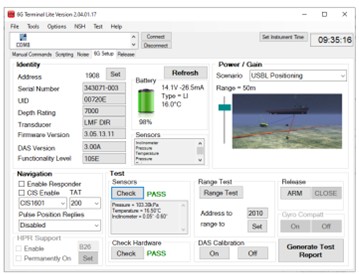
In the 6G Terminal Lite software, navigate to the 6G Setup tab where you can start your checks and generate a test report.
Note: you cannot test the acoustic communications with Bluetooth.
You can find out more about connecting to your Fetch by reading the knowledge base articles or watching the video below.